 abearxiong
3653ad5932
abearxiong
3653ad5932
- Created a new README.md file detailing CLI commands for synchronization and usage.
- Added a section discussing the potential of real-time voice commands in daily life.
- Introduced a new slides.md file for a presentation on "超级桌面生活指令" (Super Desktop Life Commands).
- Included background and theme settings for the presentation slides.
12 KiB
欢迎使用 Slidev
面向开发者的演示文稿工具
transition: fade-out
什么是 Slidev?
Slidev 是专为开发者设计的演示文稿制作与演示工具,具备以下特性
- 📝 基于文本 - 专注于内容创作,使用 Markdown 编写,之后再来美化样式
- 🎨 主题化 - 主题可以作为 npm 包分享和复用
- 🧑💻 开发者友好 - 代码高亮、支持自动补全的实时编码
- 🤹 交互式 - 可以嵌入 Vue 组件来增强表现力
- 🎥 录制 - 内置录制和摄像头视图
- 📤 便携式 - 可导出为 PDF、PPTX、PNG,甚至可托管的 SPA
- 🛠 可扩展 - 几乎任何网页上能实现的功能都可以在 Slidev 中实现
了解更多:为什么选择 Slidev?
<style> h1 { background-color: #2B90B6; background-image: linear-gradient(45deg, #4EC5D4 10%, #146b8c 20%); background-size: 100%; -webkit-background-clip: text; -moz-background-clip: text; -webkit-text-fill-color: transparent; -moz-text-fill-color: transparent; } </style>transition: slide-up level: 2
导航
悬停在左下角可以查看导航控制面板,了解更多
键盘快捷键
| → / 空格 | 下一个动画或幻灯片 |
| ← / shift空格 | 上一个动画或幻灯片 |
| ↑ | 上一张幻灯片 |
| ↓ | 下一张幻灯片 |
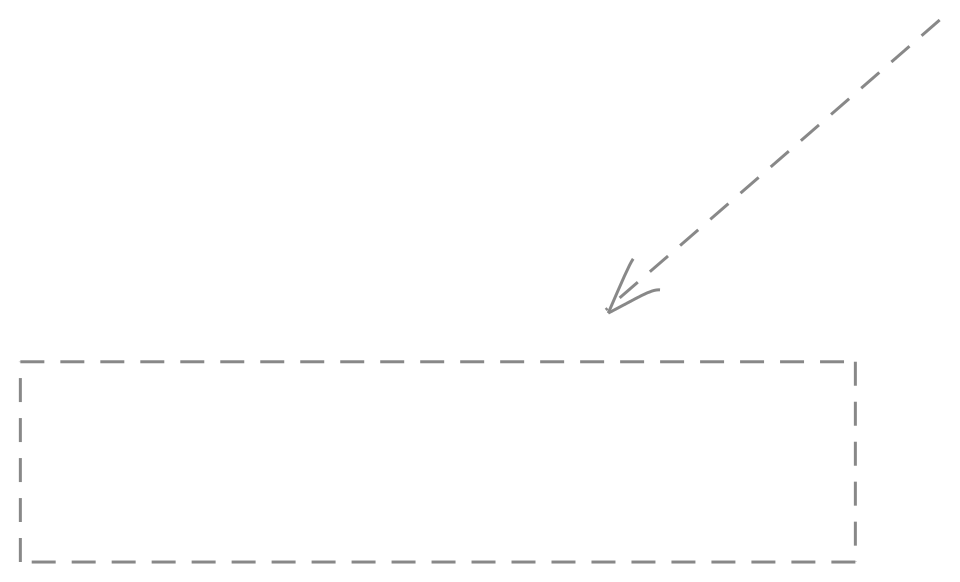
Here!
layout: two-cols layoutClass: gap-16
目录
你可以使用 Toc 组件为你的幻灯片生成目录:
<Toc minDepth="1" maxDepth="1" />
标题将从你的幻灯片内容中推断,你也可以在 frontmatter 中使用 title 和 level 来覆盖。
::right::
layout: image-right image: https://cover.sli.dev
代码
使用代码片段可直接获得语法高亮,甚至支持类型悬停提示!
// TwoSlash enables TypeScript hover information
// and errors in markdown code blocks
// More at https://shiki.style/packages/twoslash
import { computed, ref } from 'vue'

const count = ref(0)
const doubled = computed(() => count.value * 2)

doubled.value = 2
level: 2
Shiki Magic Move
由 shiki-magic-move 提供支持,Slidev 支持跨多个代码片段的动画。
添加多个代码块,并用 ````md magic-move(四个反引号)包裹它们来启用 magic move。例如:
```ts {*|2|*}
// step 1
const author = reactive({
  name: 'John Doe',
  books: [
    'Vue 2 - Advanced Guide',
    'Vue 3 - Basic Guide',
    'Vue 4 - The Mystery'
  ]
})
```

```ts {*|1-2|3-4|3-4,8}
// step 2
export default {
  data() {
    return {
      author: {
        name: 'John Doe',
        books: [
          'Vue 2 - Advanced Guide',
          'Vue 3 - Basic Guide',
          'Vue 4 - The Mystery'
        ]
      }
    }
  }
}
```

```ts
// step 3
export default {
  data: () => ({
    author: {
      name: 'John Doe',
      books: [
        'Vue 2 - Advanced Guide',
        'Vue 3 - Basic Guide',
        'Vue 4 - The Mystery'
      ]
    }
  })
}
```

非代码块将被忽略。

```vue
<!-- step 4 -->
<script setup>
const author = {
  name: 'John Doe',
  books: [
    'Vue 2 - Advanced Guide',
    'Vue 3 - Basic Guide',
    'Vue 4 - The Mystery'
  ]
}
</script>
```
组件
你可以直接在幻灯片中使用 Vue 组件。
我们提供了一些内置组件,如 <Tweet/> 和 <Youtube/>,可以直接使用。添加自定义组件也非常简单。
<Counter :count="10" />
查看指南了解更多。
<Tweet id="1390115482657726468" />
class: px-20
主题
Slidev 拥有强大的主题支持。主题可以提供样式、布局、组件,甚至工具配置。只需在 frontmatter 中一次编辑即可切换主题:
---
theme: default
---
---
theme: seriph
---


点击动画
你可以给元素添加 v-click 来添加点击动画。
点击幻灯片时显示此内容:
<div v-click>This shows up when you click the slide.</div>
v-mark 指令
还允许你添加
行内标记
,由 Rough Notation 提供支持:
<span v-mark.underline.orange>inline markers</span>
运动动画
运动动画由 @vueuse/motion 提供支持,通过 v-motion 指令触发。
<div
  v-motion
  :initial="{ x: -80 }"
  :enter="{ x: 0 }"
  :click-3="{ x: 80 }"
  :leave="{ x: 1000 }"
>
  Slidev
</div>


LaTeX
开箱即用的 LaTeX 支持。由 KaTeX 提供支持。
行内 \sqrt{3x-1}+(1+x)^2
块级 $$ {1|3|all} \begin{aligned} \nabla \cdot \vec{E} &= \frac{\rho}{\varepsilon_0} \ \nabla \cdot \vec{B} &= 0 \ \nabla \times \vec{E} &= -\frac{\partial\vec{B}}{\partial t} \ \nabla \times \vec{B} &= \mu_0\vec{J} + \mu_0\varepsilon_0\frac{\partial\vec{E}}{\partial t} \end{aligned}
[了解更多](https://sli.dev/features/latex)

---

# 图表

你可以直接在 Markdown 中根据文本描述创建图表。

<div class="grid grid-cols-4 gap-5 pt-4 -mb-6">

```mermaid {scale: 0.5, alt: 'A simple sequence diagram'}
sequenceDiagram
    Alice->John: Hello John, how are you?
    Note over Alice,John: A typical interaction
```

```mermaid {theme: 'neutral', scale: 0.8}
graph TD
B[Text] --> C{Decision}
C -->|One| D[Result 1]
C -->|Two| E[Result 2]
```

```mermaid
mindmap
  root((mindmap))
    Origins
      Long history
      ::icon(fa fa-book)
      Popularisation
        British popular psychology author Tony Buzan
    Research
      On effectiveness<br/>and features
      On Automatic creation
        Uses
            Creative techniques
            Strategic planning
            Argument mapping
    Tools
      Pen and paper
      Mermaid
```

```plantuml {scale: 0.7}
@startuml

package "Some Group" {
  HTTP - [First Component]
  [Another Component]
}

node "Other Groups" {
  FTP - [Second Component]
  [First Component] --> FTP
}

cloud {
  [Example 1]
}

database "MySql" {
  folder "This is my folder" {
    [Folder 3]
  }
  frame "Foo" {
    [Frame 4]
  }
}

[Another Component] --> [Example 1]
[Example 1] --> [Folder 3]
[Folder 3] --> [Frame 4]

@enduml
```

</div>

了解更多:[Mermaid 图表](https://sli.dev/features/mermaid) 和 [PlantUML 图表](https://sli.dev/features/plantuml)

---
foo: bar
dragPos:
  square: 691,32,167,_,-16
---

# 可拖拽元素

双击可拖拽元素可以编辑它们的位置。

<br>

###### Directive Usage

```md
<img v-drag="'square'" src="https://sli.dev/logo.png">
```

<br>

###### Component Usage

```md
<v-drag text-3xl>
  <div class="i-carbon:arrow-up" />
  Use the `v-drag` component to have a draggable container!
</v-drag>
```

<v-drag pos="640,212,261,_,-15">
  <div text-center text-3xl border border-main rounded>
    Double-click me!
  </div>
</v-drag>

<img v-drag="'square'" src="https://sli.dev/logo.png">

###### Draggable Arrow

```md
<v-drag-arrow two-way />
```

<v-drag-arrow pos="360,319,253,46" two-way op70 />

---
src: ./pages/imported-slides.md
hide: false
---

---

# Monaco 编辑器

Slidev 提供了内置的 Monaco 编辑器支持。

在代码块中添加 `{monaco}` 即可将其转换为编辑器:

```ts {monaco}
import { ref } from 'vue'
import { emptyArray } from './external'

const arr = ref(emptyArray(10))
```

使用 `{monaco-run}` 可以创建一个可直接在幻灯片中执行代码的编辑器:

```ts {monaco-run}
import { version } from 'vue'
import { emptyArray, sayHello } from './external'

sayHello()
console.log(`vue ${version}`)
console.log(emptyArray<number>(10).reduce(fib => [...fib, fib.at(-1)! + fib.at(-2)!], [1, 1]))
```

---
layout: center
class: text-center
---

# 了解更多

[文档](https://sli.dev) · [GitHub](https://github.com/slidevjs/slidev) · [展示案例](https://sli.dev/resources/showcases)

<PoweredBySlidev mt-10 />